Big Sur 11.7.8 cannot turn on wi-fi

System Preferences/Network shows Wi-Fi off. Clicking Turn Wi-Fi on does nothing on my MacBook Pro, Retina, 15-inch, Mid-2014. iPhone, iPad, and iMac have no such problems on same network. l last used Wi-Fi on it via Personal Hot Spot from my 12 Pro. Airpot Utility shows the Mac Book as a client of the AirPort Extreme I use.


MacBook Pro 15″, macOS 11.7

Posted on Jul 3, 2023 12:36 PM

Reply
Question marked as Top-ranking reply

Posted on Jul 10, 2023 6:31 AM

I found and tried, reluctantly as I felt over my head, a solution online. I deleted everything within /Library/Preferences/SystemConfiguration/ excepting com.apple.Boot.plist and restarted. This has successfully restored Wi-Fi.


I would still appreciate help, however, as I don't know how sweeping this approach was. Please advise if you recommend follow-up checks or actions. For example, are there security concerns or settings that need to be restored?


7 replies
Question marked as Top-ranking reply

Jul 10, 2023 6:31 AM in response to Matthew_J5

I found and tried, reluctantly as I felt over my head, a solution online. I deleted everything within /Library/Preferences/SystemConfiguration/ excepting com.apple.Boot.plist and restarted. This has successfully restored Wi-Fi.


I would still appreciate help, however, as I don't know how sweeping this approach was. Please advise if you recommend follow-up checks or actions. For example, are there security concerns or settings that need to be restored?


Jul 4, 2023 2:44 PM in response to jack3030

Hello jack3030,


Thank you for using Apple Support Communities. We want to help you get connected to your Wi-Fi. Allow us to assist. We want to share some helpful steps to troubleshoot Wi-Fi issues on your Mac. Let's start here: If your Mac isn't connecting to the internet over Wi-Fi - Apple Support


There are various steps listed within this resource. We recommend that you try them all. Also, you had mentioned that nothing happens when you try to enable Wi-Fi on your Mac. Is this option grayed out and not responding at all? If so you might want to test this issue in safe mode. This step can help isolate possible software related issues: How to use safe mode on your Mac - Apple Support


Apple silicon
1.) Shut down your Mac.
2.) Turn on your Mac and continue to press and hold the power button until you see the startup options window.
3.) Select your startup disk, then press and hold the Shift key while clicking “Continue in Safe Mode.”
4.) Log in to your Mac. You might be asked to log in again.

Intel processor
1.) Turn on or restart your Mac, then immediately press and hold the Shift key as your Mac starts up.
2.) Release the key when you see the login window, then log in to your Mac.
3.) You might be asked to log in again. On either the first or second login window, you should see ”Safe Boot” in the upper-right corner of the window.


Depending on your results, follow the steps under “If the issue continues in safe mode” or “If the issue doesn't continue in safe mode”.


We hope these steps help you. Thank you for using Apple Support Communities. Take care.



Jul 7, 2023 12:15 PM in response to jack3030

Hi there jack3030,


Thank you for the reply.


Yes, you can use Apple Diagnostics to test your Mac. See this Apple Support document: Use Apple Diagnostics to test your Mac - Apple Support


If that doesn't help, we suggest visiting an Apple Authorized Service Provider, Apple Store, or Apple Authorized Distributor to have the hardware diagnosed. You can find their location here: Find Locations


You can also get ahold of Apple Support for additional assistance: Get Support


Take care.

Jul 10, 2023 9:08 AM in response to jack3030

jack3030,


While we wouldn't recommend removing any items from the library, if you aren't experiencing any issues, there wouldn't be any further actions needed other than setting up Wi-Fi again.


If you do see any other issues, you can reinstall macOS which should restore the default preferences in the Library: How to reinstall macOS - Apple Support


If you're not using a Mac with Apple silicon, then you're using an Intel-based Mac.
1. Press the power button on your Mac to turn it on, then release the power button and immediately press and hold both the Command (⌘) key and R key until you see an Apple logo or spinning globe. If you can't start up from Recovery in this way, review the guidelines for using startup-key combinations.
2. If you're asked to select a user you know the password for, select the user, click Next, then enter their administrator password.

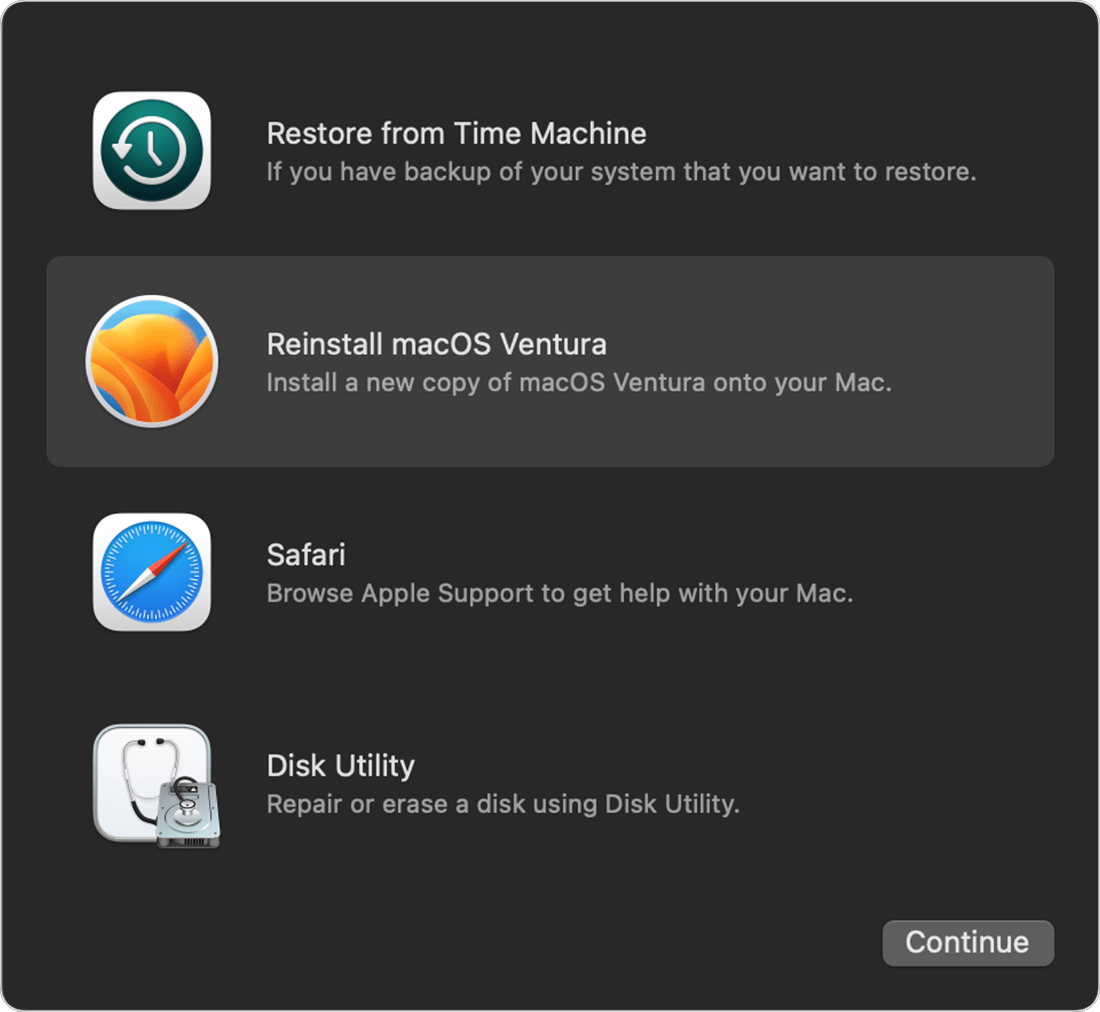
Reinstall macOS from macOS Recovery
When you see a window with the option to reinstall macOS, your Mac has started up from Recovery.
1. Select the option to reinstall macOS. 
2. Utilities window in macOS Recovery
3. Click Continue, then follow the onscreen instructions.
* If the installer asks to unlock your disk, enter the password that you use to log in to your Mac.
* If the installer doesn't see your disk, or it says that it can't install on your computer or volume, you might need to erase your disk first.
* If the installer offers you the choice between installing on Macintosh HD or Macintosh HD - Data, choose Macintosh HD.
* Allow installation to complete without putting your Mac to sleep or closing its lid. Your Mac might restart and show a progress bar several times, and the screen might be empty for minutes at a time.

After installation is complete, your Mac might restart to a setup assistant.

Cheers.

Jul 7, 2023 11:40 AM in response to jack3030

Sorry about the delay, but I wanted to make sure I had adequate time to address the instructions. They do not really seem to address my specific problem, which is that my MacBook Pro will not allow me to Turn on Wi-Fi, but rather seem to address inability to connect to a network after getting over that hurdle. Please note that I am connected through the same Wi-Fi to the same internet connection on multiple other devices without problem.


It is my subjective notion that a software update might resolve the problem, but how to accomplish that without being able to turn on Wi-Fi. Is it possible to look at hardware status in order to eliminate the possibility that is the cause?


This thread has been closed by the system or the community team. You may vote for any posts you find helpful, or search the Community for additional answers.

Big Sur 11.7.8 cannot turn on wi-fi

Welcome to Apple Support Community
A forum where Apple customers help each other with their products. Get started with your Apple Account.