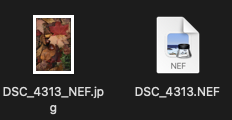
Here is an AppleScript that depends upon the free, third-party EXIFtool utility to extract a JPG image (with EXIF metadata) from a camera raw image, whether that camera model is supported or unsupported by the operating system.
Whether Apple Silicon or Intel Mac, the ExifTool installer places the executable in /usr/local/bin/exiftool as the script indicates.
Once EXIFTool is installed, one performs a shift+cmd+U in the Finder, and then double click the Script Editor found there to launch it. Click New Document and select Desktop since it is handy.
Copy the following code into the Script Editor, click the hammer icon, and then run it, where it will only look for camera raw type files in the File Chooser.
(*
 raw2jpg.applescript

 Extract the JPG image with EXIF data from the camera RAW content into the same filesystem
 location. The original RAW image remains unchanged. Output file will have the RAW
 extension appended to the base filename such as DSC_4313.NEF => DSC_4313_NEF.jpg.

 Version: 1
 Requirement: EXIFTool, https://exiftool.org
 Tested: macOS Sequoia v15.3.1, Nikon Z8 Raw Image (NEF)
 VikingOSX, 2025-03-03, Apple Support Communities, no warranties expressed or implied
 *)

use scripting additions


set thisImage to POSIX path of (choose file of type {"public.camera-raw-image"} default location (path to desktop)) as text

my makeRawAsJPG(thisImage)
return

on makeRawAsJPG(image)
	try
		return (do shell script "/bin/zsh -s <<'EOF' - " & image's quoted form & " >& /dev/null" & "
#!/bin/zsh
/usr/local/bin/exiftool -m -q -if '$jpgfromraw' -b -jpgfromraw -w %d%f_%ue.jpg \\
-execute -if '$previewimage' -b -previewimage -w %d%f_%ue.jpg \\
-execute -tagsfromfile @ -srcfile %d%f_%ue.jpg -overwrite_original \\
-common_args --ext jpg \"${1}\"
exit 0
EOF")
	end try
end makeRawAsJPG