Pages not auto-saving and freezing

Recently I updated my MacBook Air M4 (2025) to Tahoe 26.1, and ever since, Pages has stopped auto-saving. I have to remember to keep saving as I write which of course is very annoying.


It also started to beach ball and hang or freeze quite often, (which is how I learned that it wasn't saving anymore because I lost a bunch of pages of work after I had to force quit). I found deleting everything from the Corespotlightd folder fixed it for a while, but I've had to use that fix twice now, about a month apart. It seems to be Pages that causes this problem as well.


This is a very new computer and I've never had trouble with Pages.


Anyone else have the same issue? And fixes? Will it be fixed with the next update?


Posted on Dec 9, 2025 7:07 PM

Reply
Question marked as Top-ranking reply

Posted on Dec 11, 2025 1:45 PM

As a test, when I have that System Settings > Desktop & Dock > Ask to keep changes when closing documents enabled, then autosave is prevented. When I launch Pages, and choose a blank template, it is aware of that preceding setting. Subsequent edits and manual saves to this document do not reflect a "Edited" in the document title.


That paragraph suggests to me that until you disable that mentioned Desktop & Dock setting, you will not have autosave functionality nor see what I see being that Edited document titlebar info with autosave active. Autosave will usually occur within 10 - 15 seconds of any changes it detects to the current document content, and slightly longer if autosaving to iCloud Drive.


Quite frankly, my Pages v14.4 has never hung or crashed on my Mac under Tahoe or even Sequoia. The fact that yours does suggests that something on your system that is not on mine is conflicting with it. Some software that you may have installed (or restored) in the past could no longer be compatible with Tahoe and collaterally impacting Pages stability.


I recommend that you manually save any currently open Pages document, then quit Pages from its application menu. Do the same with any other applications and documents. Next, shut your Mac down (don't just reboot).


See and follow the steps in the section Start up your Mac with Apple silicon in safe mode in Start up your Mac in safe mode - Apple Support


Once in Safe Boot mode, you will have cleared System caches and rebuilt the font database. It will also block any third-party drivers from loading that may be causing your Pages issues. Launch Pages and see how it behaves. Without Pages or any other applications running, I suggest that you change directory into the:

/Users/yourname/Library/Caches/


Once in that folder, press cmd+A to select everything and move it to the Trash. Do not drag that folder to the Trash. Do not empty the Trash yet. Reboot the Mac normally, and then empty the Trash. Now once again, launch Pages and gauge its behavior after Safe Boot and clearing of that Cache data.


See if this is enough to stabilize Pages, or if we need to do more…


8 replies
Question marked as Top-ranking reply

Dec 11, 2025 1:45 PM in response to kelownagurl

As a test, when I have that System Settings > Desktop & Dock > Ask to keep changes when closing documents enabled, then autosave is prevented. When I launch Pages, and choose a blank template, it is aware of that preceding setting. Subsequent edits and manual saves to this document do not reflect a "Edited" in the document title.


That paragraph suggests to me that until you disable that mentioned Desktop & Dock setting, you will not have autosave functionality nor see what I see being that Edited document titlebar info with autosave active. Autosave will usually occur within 10 - 15 seconds of any changes it detects to the current document content, and slightly longer if autosaving to iCloud Drive.


Quite frankly, my Pages v14.4 has never hung or crashed on my Mac under Tahoe or even Sequoia. The fact that yours does suggests that something on your system that is not on mine is conflicting with it. Some software that you may have installed (or restored) in the past could no longer be compatible with Tahoe and collaterally impacting Pages stability.


I recommend that you manually save any currently open Pages document, then quit Pages from its application menu. Do the same with any other applications and documents. Next, shut your Mac down (don't just reboot).


See and follow the steps in the section Start up your Mac with Apple silicon in safe mode in Start up your Mac in safe mode - Apple Support


Once in Safe Boot mode, you will have cleared System caches and rebuilt the font database. It will also block any third-party drivers from loading that may be causing your Pages issues. Launch Pages and see how it behaves. Without Pages or any other applications running, I suggest that you change directory into the:

/Users/yourname/Library/Caches/


Once in that folder, press cmd+A to select everything and move it to the Trash. Do not drag that folder to the Trash. Do not empty the Trash yet. Reboot the Mac normally, and then empty the Trash. Now once again, launch Pages and gauge its behavior after Safe Boot and clearing of that Cache data.


See if this is enough to stabilize Pages, or if we need to do more…


Dec 11, 2025 8:16 AM in response to kelownagurl

On my own Pages v14.4 (Tahoe 26 .1) documents, with autosave definitely working, the "Edited" status in the document title bar fades, but never disappears. Your association with that title bar status and autosave not working is incorrect.


When Pages is force quit, or crashes, whatever was in your current editing buffer or temporary files is permanently lost because autosave was already dead and had no chance to process the unsaved content. Under these circumstances (only), I recommend one next launch Pages while holding the shift key down to override Pages reloading its last saved execution state. That may or may not prevent another hang.


If you are not seeing that black dot in the red traffic light of my previous image, and you have received no warning dialog that autosave cannot work on the selected document save medium, then it is working. You can confirm that it is working by clicking once on the document icon in the Finder and pressing the space bar to display a Quick Look view of the document content. With autosave active, you will see your recent changes appear in that Quick Look view.


CoreSpotlightd has nothing to do with Pages. It is the system daemon responsible for managing the Spotlight indexing of your drive contents to allow subsequent Spotlight queries. My Pages works just fine without any beachballs or lag and I have never tampered with CoreSpotlightd contents.


The rainbow beach ball is the operating system giving CoreSpotlightd and the two dozen or more Spotlight indexing processes more process priority to RAM, storage, and run slots than the lower priority it gives to the user process Pages. This is why you may see CoreSpotlightd usurping 200% in Activity Monitor. It has been given the priority to do that.


My advice is to trust autosave is working, close your documents when not actively updating them, and quit Pages from its application menu when not in use. I also recommend that you have an hourly Time Machine backup to an external drive capturing your documents so that they can be restored as needed. I follow this advice and have no operating system or application issues with the same operating system you are using.


I shutdown my Mac before I go to bed, and power it back on first thing in the morning. If I will be away for more than an hour, I will also power it down. Over the years, no Mac has acquired any hardware issues with this regimen.

Dec 10, 2025 9:40 AM in response to kelownagurl

I am using Pages v14.4 with Tahoe 26.1 and have no issues whatsoever. When you make subsequent changes to a Pages document after you save it once, you will get the document name — Edited appearing on the document title bar. That is normal.


If that Ask to keep changes when closing documents is enabled or disabled, Pages won't be aware of that change until you save, close all documents, and quit Pages. On the next launch, Pages will honor that setting.


I do not advise keeping Pages running with an open document between Mac power cycles. I have never found it necessary to tamper with the Corespotlightd folder, nor pay attention to Internet Quick Fix posts which may completely ignore the real issues.


If you are not seeing the black dot in the red traffic light as shown below while entering text in Pages, then autosave is working, or you would have received a warning dialog that you are attempting to save a document where autosave is unsupported.


Dec 10, 2025 10:15 AM in response to VikingOSX

But the problem is - autosave is NOT working. If I make changes to a document that has been manually saved at least one, it stays in edited mode and never autosaves.


If I close it, it will prompt me to save, which is fine. But because I've been occasionally having problems with my laptop stalling, I sometimes have to force quit Pages and will lose any new writing I've done if I have done a manual save. (if Pages freezes or stalls, I usually won't be prompted to save before I quit the program.)


Autosave has ALWAYS worked for me, and I have kept my journal open with updates autosaving for more than 5 years, through multiple pages and OS updates, without any problem.


This is an issue that has only occurred since I updated to Tahoe.


As for finding the real issue, I would love to. But for now, deleting Corespotlightd when my laptop starts to beachball (every month or two), has been the only solution that has worked for that particular problem. This was suggested to me as a fix because Corespotlightd was using up 200% or more of CPU in Activity Monitor.


And to be clear, these are two separate issues but I believe they are both related to Pages because when Corespotlightd starts using tons of CPU power, Pages usually freezes at the same time although I am usually able to use other apps.


Dec 11, 2025 8:57 AM in response to kelownagurl

And interestingly enough, Pages just froze after I typed that last reply. I had not autosaved the paragraph I had written earlier this morning. Pages was up to 190% of CPU on Activity Monitor and not responding so I had to shut it down and restart it. The text I wrote earlier this morning was not saved. In other words, Autosave had not kicked in at any time during the 30+ minutes after I wrote the text, until the point when I had to reboot the app.

Dec 10, 2025 3:29 AM in response to kelownagurl

What version of Pages are you using, where v14.4 is the current release that has not been updated for 8 months.


Ordinarily, one begins a new Pages document and should immediately and manually save it on a supported filesystem with a proper document name. When that is done, all subsequent work on that document, even across Pages sessions, is autosaved. There are unsupported third-party cloud services, mounted drives with incompatible filesystems (e.g. HFS, NTFS), and some network attached storage where Pages autosave may rebel, and inform via a dialog.


If a black dot appears in the red traffic light of the document title panel, then autosave is disabled. That would be the case if System Settings > Desktop & Dock panel > Windows : Ask to keep changes when closing documents is enabled, or a filesystem issue from the first paragraph. Otherwise, autosave should be detecting changes and saving so frequently that you will not be aware of it, nor will any black dot appear as mentioned.


A beach-balling effect with Pages is indicative of a resource contention issue. Do you have any anti-virus, so-called "Mac Cleaners," or anything else that you installed before this occurred? Shutdown (do not reboot) your Mac. Then power it on , and press and hold the shift-key while launching Pages again. Beach-balling continues?


Only the Pages product team has information about the next Pages release. They, as all other Apple employees, do not participate in these fellow user-supported, and public communities.


Dec 10, 2025 8:58 AM in response to VikingOSX

Thanks for your reply.


I am using Pages 14.4


I have the problem whether "System Settings > Desktop & Dock panel > Windows : Ask to keep changes when closing documents" is turned on or off.


The title of the document has the greyed out words "Edited" after I write something, but the autosave never kicks in. I generally leave one particular document open all the time and only close it when I want to reboot my laptop for some reason. I now try to remember to file-save each time I write in the document.


In the many years I've been using Pages, documents have always autosaved and this problem only began when I updated to Tahoe.


A beach-balling effect with Pages is indicative of a resource contention issue. Do you have any anti-virus, so-called "Mac Cleaners," or anything else that you installed before this occurred? Shutdown (do not reboot) your Mac. Then power it on , and press and hold the shift-key while launching Pages again. Beach-balling continues?


I do not have Mac Cleaners on my laptop and no software that I haven't already had for years before I updated to Tahoe.


As for the lagging problem, which I believe is also related to having Pages open, I have run diagnostic software and learned that if I delete everything in the Corespotlightd folder, the beach balling stops for a few weeks.

Dec 11, 2025 8:47 AM in response to VikingOSX

That's interesting. I guess I won't know unless my laptop crashes again. But both times I was forced to reboot in the past month, I lost everything that I hadn't manually saved. The first time, it was 3 days of text. Surely it would have autosaved at least once during that time?


Also, I find this interesting.


VikingOSX wrote:

On my own Pages v14.4 (Tahoe 26 .1) documents, with autosave definitely working, the "Edited" status in the document title bar fades, but never disappears. Your association with that title bar status and autosave not working is incorrect.


So if you manually save your document while you are using it, the word Edited does not disappear? Mine does. It disappears completely. I see it in faded state when I am typing new text, but when I save manually, it disappears. If I don't manually save, it does not autosave.


And to reiterate, I do not see a black dot in the red circle. And if I choose to close the document, I am prompted to save any new text so that part works fine.


I do have Time Machine but can't keep it connected because of the location of my laptop but I do connected it and back up from time to time. I try for daily.


I do not want to close this one document that I use and I for the past five years, I've always left a document open. I also do not shut down my Mac unless I decide to reboot it for some reason. Again, this has worked faithfully for me for many years, on every Mac I've ever owned.


You may be right about the Corespotlightd and Pages problems not being related. This is supposition on my part. All I know is that when Corespotlightd jumps up to 150+% and stays that way for hours/days on end, Pages is the app that also freezes or lags and takes up an inordinate amount of CPU. And if I reset the Corespotlightd files (which was recommended to me as a fix by someone else), both Pages and my laptop work perfectly again. (At least as far as lagging and freezing is concerned -- it does nothing for the fact that my documents no longer auto-save.)


Anyway, I appreciate the time you have taken to respond to my query and will look further into your suggestions although at this time, I feel like we are talking at cross purposes. I know that there are a number of "fixes" I could employ, such as closing my document every day etc, but I really just want my Mac to work the way it always has in the past. I've been keeping my journal in this matter for 6 years on two different laptops through multiple OS updates and I've never had this problem until I updated to Tahoe. And even if it isn't a Tahoe issue, if it's just a coincidence, I am still trying to find a solution to the fact that my documents no longer auto-save every 5 min or so.


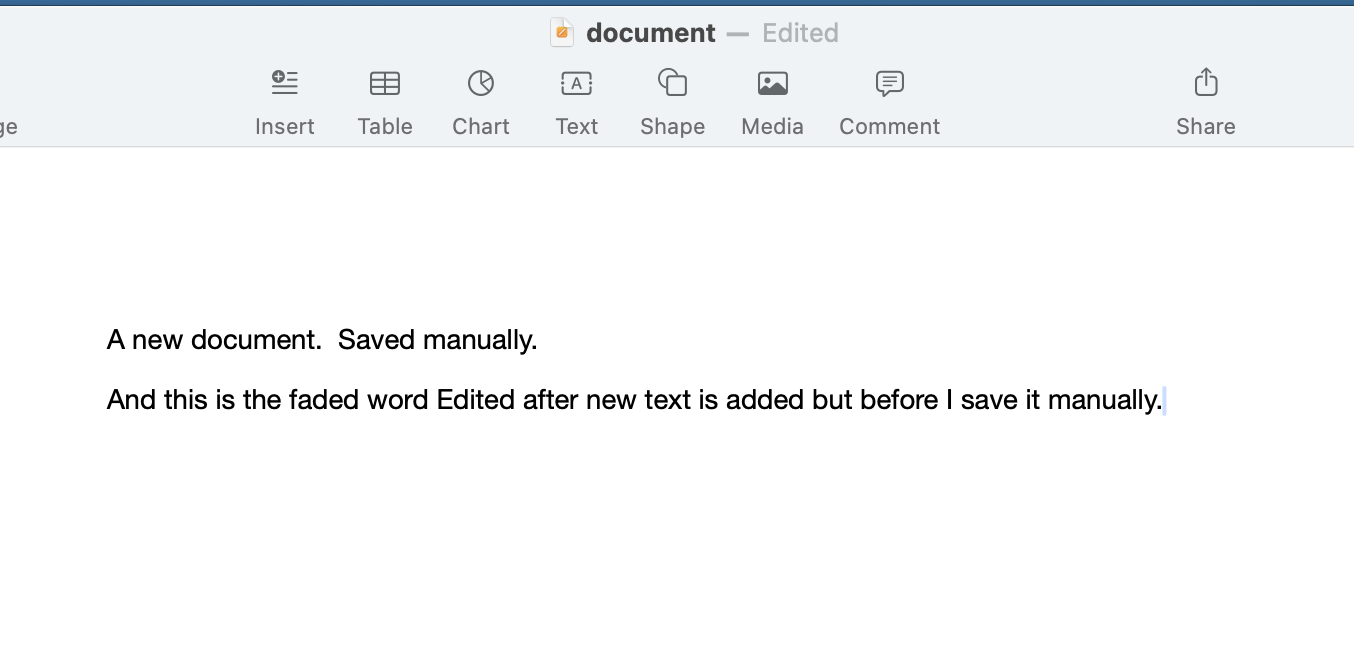
Here are two samples. This first, I have typed and saved manually. (No Edited in title line).

The second I have typed but not saved. (Edited in title line)


Pages not auto-saving and freezing

Welcome to Apple Support Community
A forum where Apple customers help each other with their products. Get started with your Apple Account.