Change your Apple ID password immediately. Change your Apple Account password
If you need to change your Apple ID password, follow these steps immediately to secure your account:
- Change Your Apple ID Password:
- On your iPhone, iPad, or Mac, go to Settings (or System Settings on Mac).
- Tap your name at the top, then select Password & Security.
- Choose Change Password and follow the prompts to set a new, strong password.
- Sign Out Other Devices (If Prompted):
- When changing your password, you may be notified that other devices are signed in to your Apple ID.
- Select Log out of all other devices to ensure that any unauthorized access is removed.
- Update Your New Password on Your Devices:
- After changing the password, you may need to sign back in on your iPhone, iPad, Mac, and other Apple services like iCloud, iMessage, FaceTime, and the App Store.
- Enable Two-Factor Authentication (If Not Already On):
- Go to Settings > Your Name > Password & Security and enable Two-Factor Authentication for extra security.
- Check for Suspicious Activity:
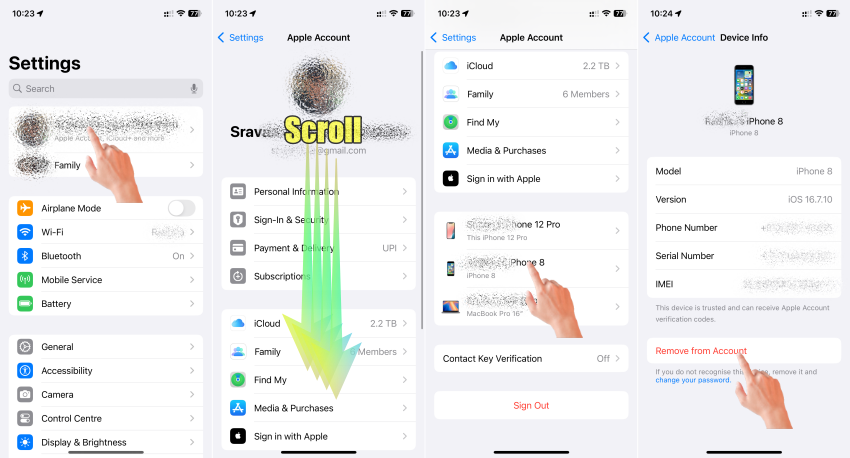
- Review devices signed into your Apple ID by going to Settings > Your Name > Devices and remove any unrecognized ones.
- Check Recent Activity in your Apple ID account for any unusual sign-ins.
These steps ensure your Apple ID remains secure and prevent unauthorized access to your account.

After this, if there are devices still showing under the Apple ID which you do not recognise, follow the process given below.
The pic below is self-explanatory.