Notifications not registering on iPhone

Since yesterday, I have an issue with my iPhone XR (iOS 16) that is driving me mad.


I no longer receive visual or sound alerts whenever I receive a notification from an app. I receive the notifications, but they just don’t alert me anymore (I have to tap on my screen to see that I’ve receive messages, for example).


My Apple Watch alerts me, as do my iPad and my MacBook, but the iPhone just seems blissfully oblivious to notifications.


I’ve not changed any settings on my iPhone and everything was working just fine before yesterday. I do not have any Focus setting on, I’m supposed to get notifications, even on the Lock Screen. I even turned notifications off, shut down my iPhone, turn it on again and switched on the notifications, but to no avail.


I missed some important messages because of this issue.


How can I fix that… besides signing off of iCloud or resetting my iPhone and start all over from scratch (which could be a bit… overkill)?

iPhone XR

Posted on Jul 12, 2023 5:13 AM

Reply
Question marked as Top-ranking reply

Posted on Jul 12, 2023 5:50 AM

There are a few reasons why you might not be getting notifications on your iPhone. Here are some of the most common causes:


  • Do Not Disturb mode is turned on. Do Not Disturb mode silences all notifications, so make sure it's turned off. You can do this by swiping down from the top of your screen and tapping the crescent moon icon.
  • You're in a Focus mode. Focus modes are like Do Not Disturb mode, but they can be customized to block notifications from specific apps or people. To check if you're in a Focus mode, swipe down from the top of your screen and tap the Focus icon.
  • You've turned off notifications for a specific app. You can turn off notifications for individual apps in the Settings app. To do this, go to Settings > Notifications and scroll down to the app you want to change. Toggle the Allow Notifications switch to the off position.
  • Your iPhone is in Airplane mode. Airplane mode turns off all wireless connections, including cellular data and Wi-Fi. This means that you won't be able to receive notifications if your iPhone is in Airplane mode.
  • Your iPhone is not connected to the internet. If your iPhone is not connected to the internet, you won't be able to receive notifications from apps that need to connect to the internet to send notifications.
  • Your iPhone is not up to date. Sometimes, software updates can fix bugs that can cause notification problems. Make sure your iPhone is up to date by going to Settings > General > Software Update.


If you've checked all of these things and you're still not getting notifications, you can try restarting your iPhone. If that doesn't work, you can contact Apple support for help.



Have you enabled Scheduled Summary?


Settings > Notifications > [Select the App that you are having trouble receiving immediate notifications]


See the pic below for a few examples. Please select immediate delivery.
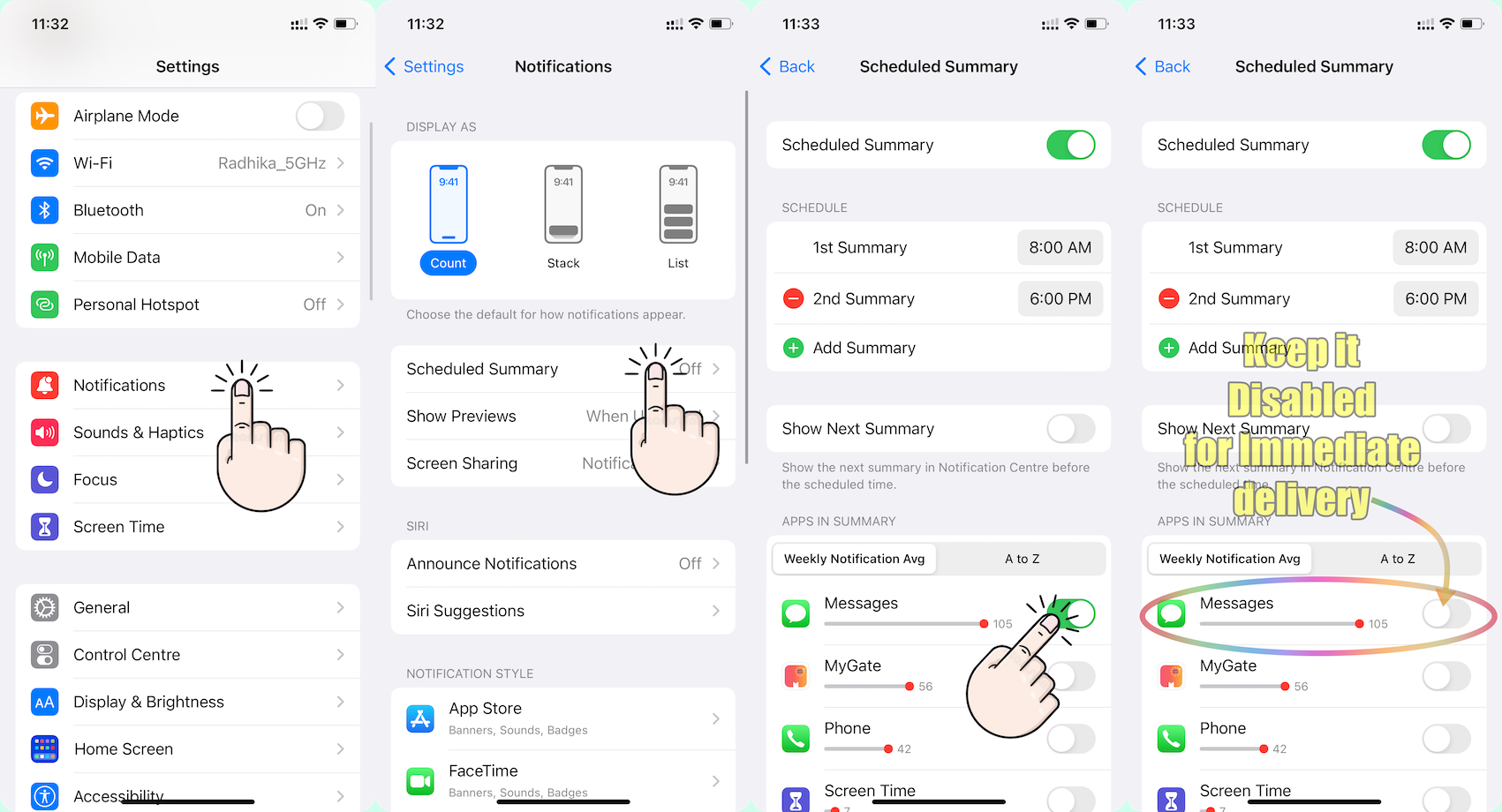


Go to Settings and tap Notifications. Select an app under Notification Style. Under Alerts, choose the alert style that you want. If you turn on Allow Notifications, choose when you want the notifications delivered — immediately or in the scheduled notification summary.


Use notifications on your iPhone, iPad, and iPod touch


Change notification settings on iPhone

  1. Go to Settings > Notifications.
  2. To schedule a notifications summary, tap Scheduled Summary, then turn on Scheduled Summary. ... 
  3. To choose when you want most notification previews to appear, tap Show Previews, select an option—Always, When Unlocked, or Never—then tap.

More items...


Change notification settings on iPhone - Apple Support (IN)


You can allow access to Notification Center on the Lock Screen. Go to Settings > Face ID & Passcode (on an iPhone with Face ID) or Touch ID & Passcode (on other iPhone models). Enter your passcode. Scroll down and turn on Notification Center (below Allow Access When Locked).


View and respond to notifications on iPhone - Apple Support (IN)


Here are some additional tips for troubleshooting notification problems on your iPhone:

  • Make sure that your iPhone is not in silent mode.
  • Check the notification settings for individual apps to make sure that they are turned on.
  • Make sure that your iPhone is connected to a Wi-Fi network or cellular data network.
  • Restart your iPhone.
  • Update your iPhone to the latest version of iOS.
  • Contact Apple support for help.


Similar questions

2 replies
Question marked as Top-ranking reply

Jul 12, 2023 5:50 AM in response to RémyGrondin

There are a few reasons why you might not be getting notifications on your iPhone. Here are some of the most common causes:


  • Do Not Disturb mode is turned on. Do Not Disturb mode silences all notifications, so make sure it's turned off. You can do this by swiping down from the top of your screen and tapping the crescent moon icon.
  • You're in a Focus mode. Focus modes are like Do Not Disturb mode, but they can be customized to block notifications from specific apps or people. To check if you're in a Focus mode, swipe down from the top of your screen and tap the Focus icon.
  • You've turned off notifications for a specific app. You can turn off notifications for individual apps in the Settings app. To do this, go to Settings > Notifications and scroll down to the app you want to change. Toggle the Allow Notifications switch to the off position.
  • Your iPhone is in Airplane mode. Airplane mode turns off all wireless connections, including cellular data and Wi-Fi. This means that you won't be able to receive notifications if your iPhone is in Airplane mode.
  • Your iPhone is not connected to the internet. If your iPhone is not connected to the internet, you won't be able to receive notifications from apps that need to connect to the internet to send notifications.
  • Your iPhone is not up to date. Sometimes, software updates can fix bugs that can cause notification problems. Make sure your iPhone is up to date by going to Settings > General > Software Update.


If you've checked all of these things and you're still not getting notifications, you can try restarting your iPhone. If that doesn't work, you can contact Apple support for help.


Have you enabled Scheduled Summary?


Settings > Notifications > [Select the App that you are having trouble receiving immediate notifications]


See the pic below for a few examples. Please select immediate delivery.


Go to Settings and tap Notifications. Select an app under Notification Style. Under Alerts, choose the alert style that you want. If you turn on Allow Notifications, choose when you want the notifications delivered — immediately or in the scheduled notification summary.


Use notifications on your iPhone, iPad, and iPod touch


Change notification settings on iPhone

  1. Go to Settings > Notifications.
  2. To schedule a notifications summary, tap Scheduled Summary, then turn on Scheduled Summary. ... 
  3. To choose when you want most notification previews to appear, tap Show Previews, select an option—Always, When Unlocked, or Never—then tap.

More items...


Change notification settings on iPhone - Apple Support (IN)


You can allow access to Notification Center on the Lock Screen. Go to Settings > Face ID & Passcode (on an iPhone with Face ID) or Touch ID & Passcode (on other iPhone models). Enter your passcode. Scroll down and turn on Notification Center (below Allow Access When Locked).


View and respond to notifications on iPhone - Apple Support (IN)


Here are some additional tips for troubleshooting notification problems on your iPhone:

  • Make sure that your iPhone is not in silent mode.
  • Check the notification settings for individual apps to make sure that they are turned on.
  • Make sure that your iPhone is connected to a Wi-Fi network or cellular data network.
  • Restart your iPhone.
  • Update your iPhone to the latest version of iOS.
  • Contact Apple support for help.


Jul 12, 2023 6:06 AM in response to SravanKrA

DND mode is not enabled, I have no Focus mode enabled, my notifications are turned on for all the applications I wish notifications for, my iPhone is not in Airplane mode, it is connected to the Internet or a cellular network and my iOS is up to date. I have not enabled Schedule Summary and Notification Center is on for Face ID.


Notifications are received but don’t make any sound or appear visually on my Lock Screen, as if they were set to be delivered silently, which is not enabled, as if my iPhone forgets to signal me that it received notifications.

This thread has been closed by the system or the community team. You may vote for any posts you find helpful, or search the Community for additional answers.

Notifications not registering on iPhone

Welcome to Apple Support Community
A forum where Apple customers help each other with their products. Get started with your Apple Account.