Hi mickfromlewisville,
We appreciate you following up and sharing these details with us.
If your Mac doesn't see the duplicate photos in your Photo Library, you can use the Photos Repair Library tool after you create a backup of your Mac then search for duplicates again. This article will guide you through the complete process: How to use the Photos Repair Library tool on your Mac - Apple Support
"If your Photos library won't open or if the Photos app behaves unexpectedly on your Mac, the Photos Repair Library tool might help.
Before you use the Photos Repair Library tool, back up your photo library. You can use Time Machine, use a third-party backup solution, or copy the library to an external drive. By default, your photo library is stored in the Pictures folder within your home folder.
To get to the Photos Repair Library tool on your Mac, follow these steps:
- If Photos is open, close the app. Then, while you click to open Photos, hold down the Command and Option keys at the same time.
- In the window that opens, click Repair to start the repair process. You might be asked to enter your user account password.
The Repair Library tool analyzes the library's database and repairs any inconsistencies it detects. Depending on the size of your library, the repairs might take some time. When the process is done, Photos opens the library.
If you repair a library that's used with iCloud Photos, iCloud checks the library after the repair process completes to ensure everything is synced correctly.
If these steps don't work or you can't open the repair tool, contact Apple Support."
If you're still unable to locate duplicate photos, you may consider reaching out to Apple directly to have them investigate this further with you. You can find their contact details via the link above.
Kind regards.




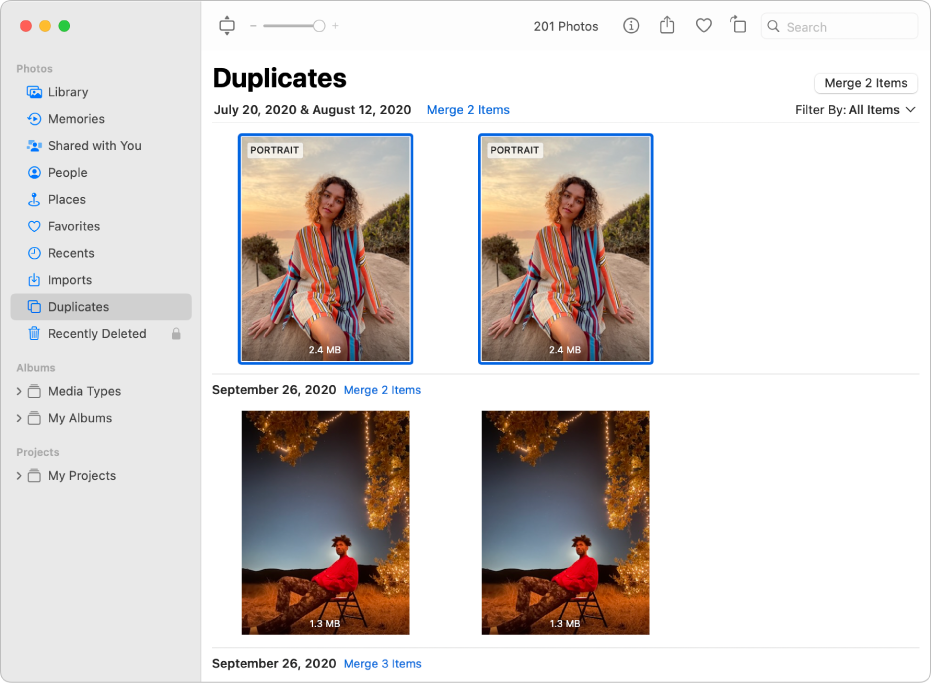
 on your Mac, click Duplicates in the sidebar.