TikTok coins
I have a screen time purchases not allowed set on our phones. I have a pin number set up to stop this feature from being turned back on. Why are TikTok coin purchases being charged on my card even with purchase blocked?
I have a screen time purchases not allowed set on our phones. I have a pin number set up to stop this feature from being turned back on. Why are TikTok coin purchases being charged on my card even with purchase blocked?
Hi there plynn9876,
If you are wanting to disable in-app purchases using Screen Time, these steps from Prevent in-app purchases from the App Store show how to do this:
How to use Screen Time to disable in-app purchases
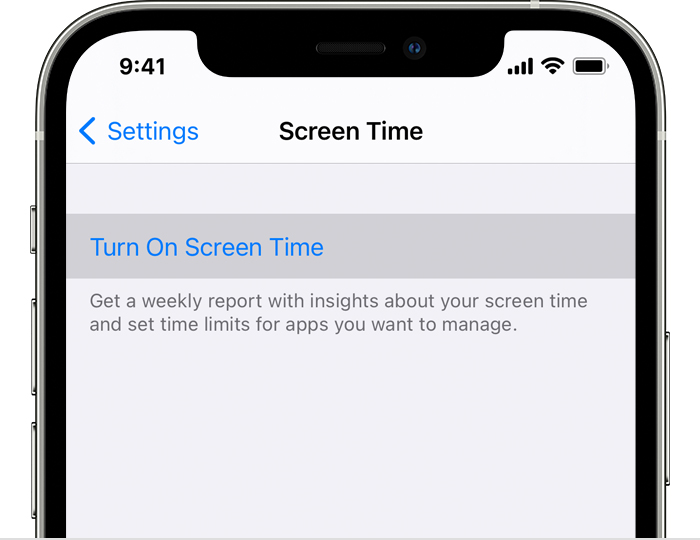
1. To turn on Screen Time, go to Settings > Screen Time, then tap Turn on Screen Time. If you already use Screen Time, skip to step 3.
2. Tap Continue, then choose "This is My [device]" or "This is My Child's [device]."
* If you're the parent or guardian of your device and want to prevent another family member from changing your settings, tap Use Screen Time Passcode to create a passcode, then re-enter the passcode to confirm. After you confirm your passcode, enter your Apple ID and password. This can be used to reset your Screen Time passcode if you forget it.
* If you're setting up Screen Time on your child's device, follow the prompts until you get to Parent Passcode and enter a passcode. Re-enter the passcode to confirm. After you confirm your passcode, enter your Apple ID and password. This can be used to reset your Screen Time passcode if you forget it.
* Make sure to choose a passcode that's different from the passcode you use to unlock your device. Learn what to do if you forget your Screen Time passcode.
3. Tap Content & Privacy Restrictions. If asked, enter your passcode, then turn on Content & Privacy Restrictions.
4. Tap iTunes & App Store Purchases.
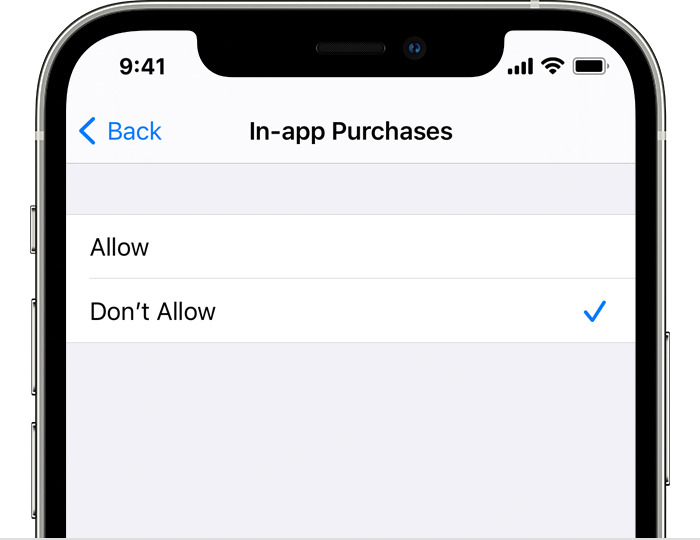
5. Tap In-app Purchases and set to Don't Allow.
If this is how the Screen Time settings are set up and these purchases still go through, then we would recommend reaching out to our Billing Support next. They would be the best equipped to look into this with you further. Connect with them here: Contact - Official Apple Support
Cheers!
Hi there plynn9876,
If you are wanting to disable in-app purchases using Screen Time, these steps from Prevent in-app purchases from the App Store show how to do this:
How to use Screen Time to disable in-app purchases
1. To turn on Screen Time, go to Settings > Screen Time, then tap Turn on Screen Time. If you already use Screen Time, skip to step 3.
2. Tap Continue, then choose "This is My [device]" or "This is My Child's [device]."
* If you're the parent or guardian of your device and want to prevent another family member from changing your settings, tap Use Screen Time Passcode to create a passcode, then re-enter the passcode to confirm. After you confirm your passcode, enter your Apple ID and password. This can be used to reset your Screen Time passcode if you forget it.
* If you're setting up Screen Time on your child's device, follow the prompts until you get to Parent Passcode and enter a passcode. Re-enter the passcode to confirm. After you confirm your passcode, enter your Apple ID and password. This can be used to reset your Screen Time passcode if you forget it.
* Make sure to choose a passcode that's different from the passcode you use to unlock your device. Learn what to do if you forget your Screen Time passcode.
3. Tap Content & Privacy Restrictions. If asked, enter your passcode, then turn on Content & Privacy Restrictions.
4. Tap iTunes & App Store Purchases.
5. Tap In-app Purchases and set to Don't Allow.
If this is how the Screen Time settings are set up and these purchases still go through, then we would recommend reaching out to our Billing Support next. They would be the best equipped to look into this with you further. Connect with them here: Contact - Official Apple Support
Cheers!
TikTok coins