iCloud defaults - does Ventura default to automatically icloud

I purchased a new MB Air. ALL of my files have been moved to my 2TB of iCloud storage. WHY? I did not change anything, for years my computers MB Pro and Air did NOT automatically move ALL files to iCloud. I went into the office today and the MB Pro - which I have not touched during setup of the new computer - ALL the files on the desktop and documents had moved to the cloud. I DID NOT change any setting/preferences/defaults on the Pro. However it DID do auto-OS-update.


What is happening? I spent two days pulling all my files back from iCloud to the computer an then to an external HD.


WHAT CHANGED DURING THE UPDATE?


I am about to send back a $2,000 !


Al S

MacBook Air 13″, macOS 13.1

Posted on Jan 5, 2023 3:33 PM

Reply
Question marked as Top-ranking reply

Posted on Jan 8, 2023 12:17 PM

Hi adobesage,


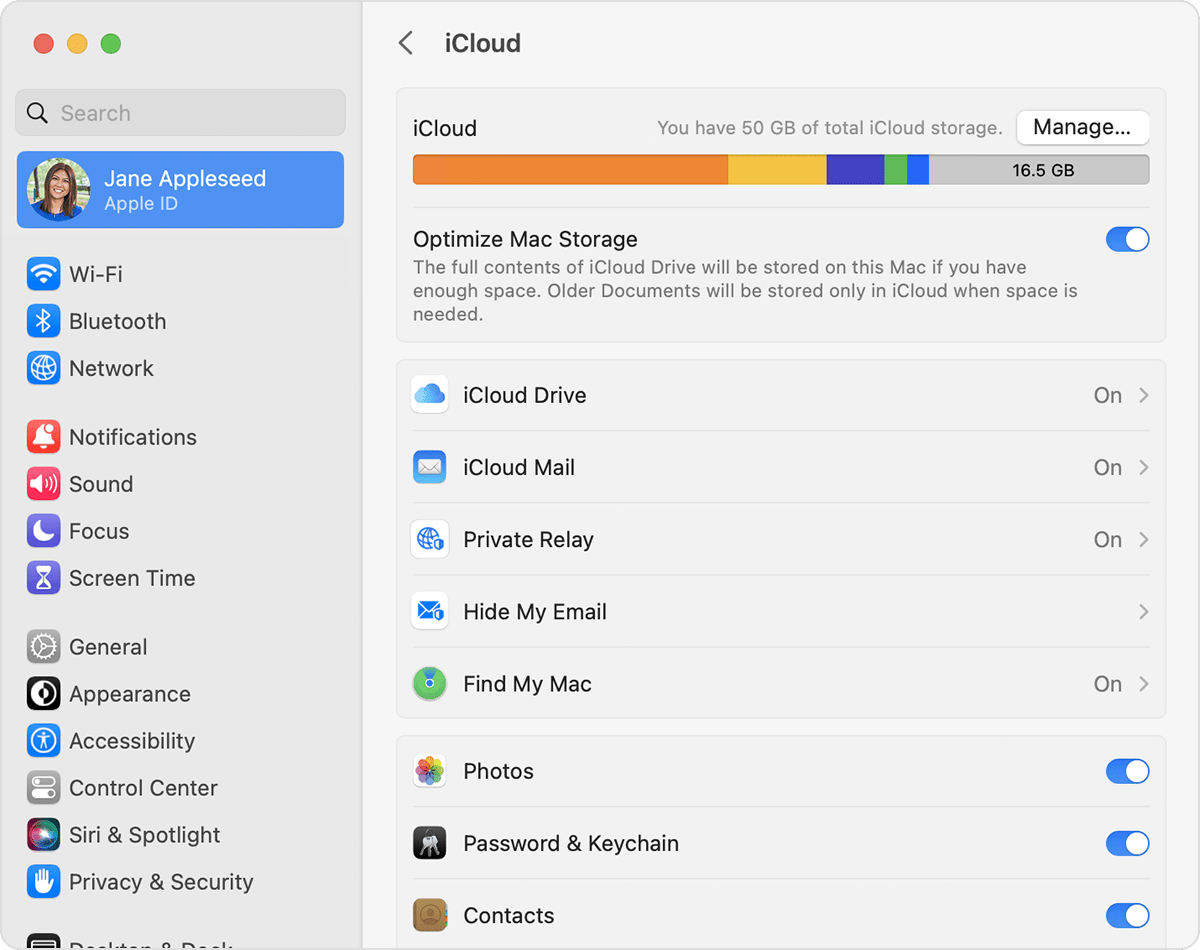
Files upload to iCloud if iCloud Drive settings are turned on to sync. You can see the settings below to turn them off if necessary:


"On your Mac

  1. Go to Apple menu  > System Settings or Apple menu  > System Preferences, then click Apple ID. 
  2. Select iCloud.
  3. Sign in with your Apple ID, if you need to.
  4. Turn on iCloud Drive.
  5. iCloud Drive is listed below the Optimize Mac Storage section.

To add the files from your Mac Desktop and your Documents folder to iCloud Drive, turn on Desktop and Documents

  • You can then find your Desktop and Documents folder in the iCloud section of the Finder sidebar. 
  • If you add a second Mac Desktop, you can find the files in your Desktop and Documents folders in iCloud Drive, in a folder with the same name as your second Mac. The files from your second Mac won't automatically merge with the files on your first Mac.

"

If you need more help, Contact Apple for support and service

Cheers.

Similar questions

1 reply
Question marked as Top-ranking reply

Jan 8, 2023 12:17 PM in response to adobesage

Hi adobesage,


Files upload to iCloud if iCloud Drive settings are turned on to sync. You can see the settings below to turn them off if necessary:


"On your Mac

  1. Go to Apple menu  > System Settings or Apple menu  > System Preferences, then click Apple ID. 
  2. Select iCloud.
  3. Sign in with your Apple ID, if you need to.
  4. Turn on iCloud Drive.
  5. iCloud Drive is listed below the Optimize Mac Storage section.

To add the files from your Mac Desktop and your Documents folder to iCloud Drive, turn on Desktop and Documents

  • You can then find your Desktop and Documents folder in the iCloud section of the Finder sidebar. 
  • If you add a second Mac Desktop, you can find the files in your Desktop and Documents folders in iCloud Drive, in a folder with the same name as your second Mac. The files from your second Mac won't automatically merge with the files on your first Mac.

"

If you need more help, Contact Apple for support and service

Cheers.

This thread has been closed by the system or the community team. You may vote for any posts you find helpful, or search the Community for additional answers.

iCloud defaults - does Ventura default to automatically icloud

Welcome to Apple Support Community
A forum where Apple customers help each other with their products. Get started with your Apple Account.