Hi Qalus,
Thanks for contacting Apple Support Communities!
We understand that you're not seeing the quality photos that you're used to using your iPhone 13.
When you say the cameras switch, do you mean they switch from rear to front camera?
We've also included a few resources below which will explain the features of your iPhone camera and how to enable them, such as Apple ProRAW, to give you more editing flexibility so that you get the quality photos you expect.
Apple ProRAW uses the information of the standard RAW format along with the iPhone image processing: About Apple ProRAW - Apple Support
"Turn on ProRAW
To take photos with ProRAW, go to Settings > Camera > Formats, then turn on Apple ProRAW under Photo Capture. To take a ProRAW photo, tap RAW  in the Camera app, then take your shot.
If you turn off RAW in the Camera app, the format of the photo defaults to the format you set under Camera Capture in Settings > Camera > Formats: either High Efficiency (HEIF format) or Most Compatible (JPEG)."
Take Apple ProRAW photos with your iPhone camera - Apple Support
This resource outlines the features and editing tools that you can adjust on your iPhone camera: Take and edit photos on your iPhone, iPad, and iPod touch - Apple Support
When you take photos at night, you can also adjust the exposure for a longer exposure which may appear blurry if your iPhone moves while you're taking the photo. Another option would be to use a tripod when you're taking photos at night to ensure your iPhone is still and you can increase the exposure time: Take Night mode photos with your iPhone camera - Apple Support
"Edit your photo or video
After you take your photo or video, open it in the Photos app and tap Edit. Then you can adjust the crop, angle, light, add a filter, and more. Choose an adjustment, like Brightness or Saturation, and slide to change the strength and intensity. If you don’t like how your changes look, tap Cancel and revert back to the original.
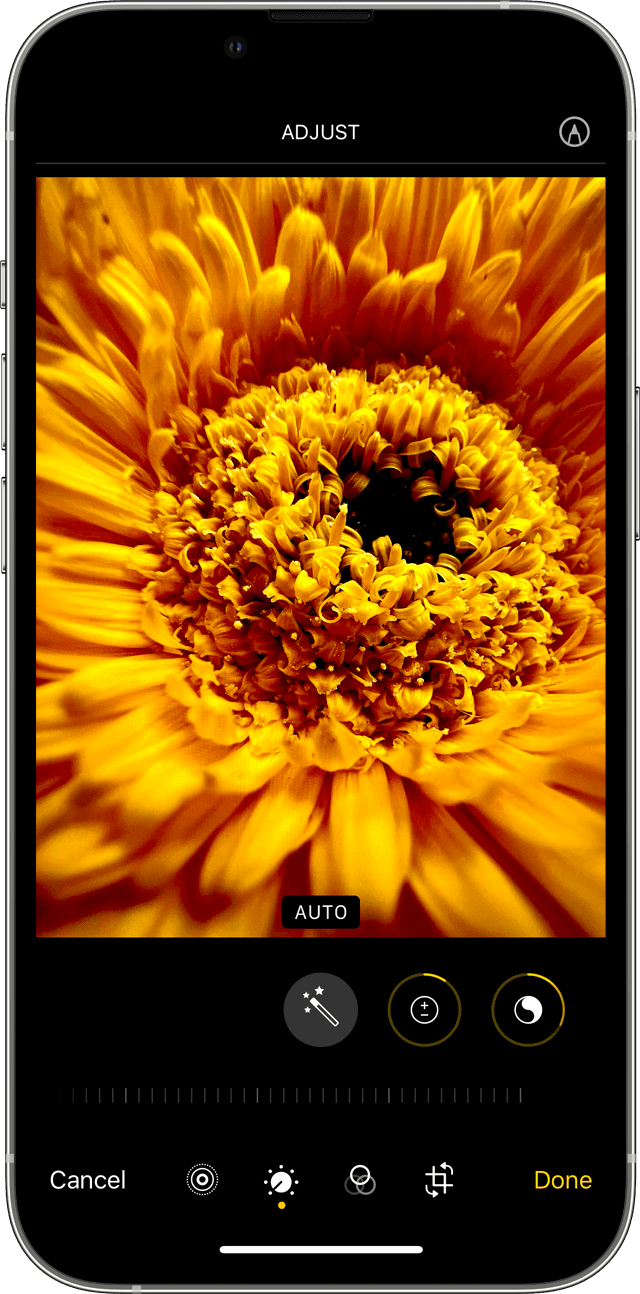

Adjust light and color
Improve the exposure, saturation, highlights, warmth, tint, and more of your photos and videos. Then use the slider to make precise adjustments with each setting.

Apply filters
Tap one of the photo filters to give your photo a different color effect, such as Vivid or Dramatic. Or try classic black and white looks like Mono and Silvertone.

Crop and straighten
You can drag the corners of the grid tool to set your own crop, then move the wheel to tilt or straighten your photo or video. You can also rotate or flip your photo or video, and adjust the vertical and horizontal perspective."
We look forward to your reply.
Cheers!