You can try Troubleshooting wifi and cellular issues
1. Troubleshooting Wi-Fi Issues
Turn Your Wi-Fi Off Then Back On
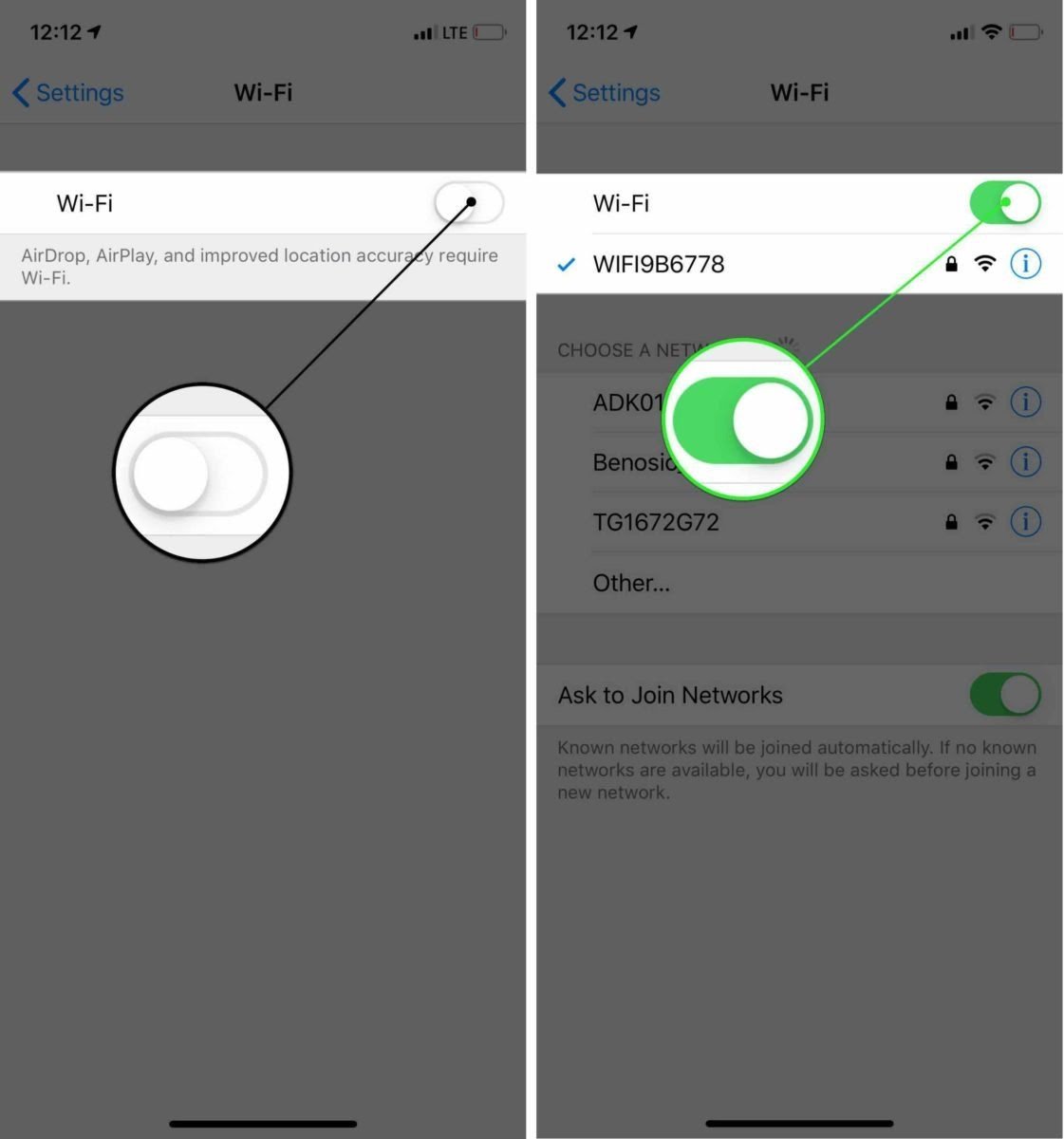
The first thing to do when your iPhone won’t connect to the internet is to quickly turn Wi-Fi off and back on. This gives your iPhone a second chance to connect to your Wi-Fi network, which could resolve a minor software problem.
Open Settings and tap Wi-Fi. Then, tap the switch next to Wi-Fi at the top of the menu. Wait a few seconds, then toggle Wi-Fi on again.
Forget The Wi-Fi Network On Your iPhone
Sometimes forgetting your Wi-Fi network on your iPhone and setting it up like new can fix connectivity issues. When you connect your iPhone to a Wi-Fi network for the first time, it saves information about that network and how to connect to it. If part of that connection process has changed, it could be the reason why your iPhone won’t connect to the internet, or why your iPhone says “No Internet Connection.”
Make sure to write down your Wi-Fi password before you complete this step! You’ll have to reenter it when you reconnect to the network.
Open Settings and tap Wi-Fi. Tap on the information button next to your Wi-Fi network, then tap Forget This Network.
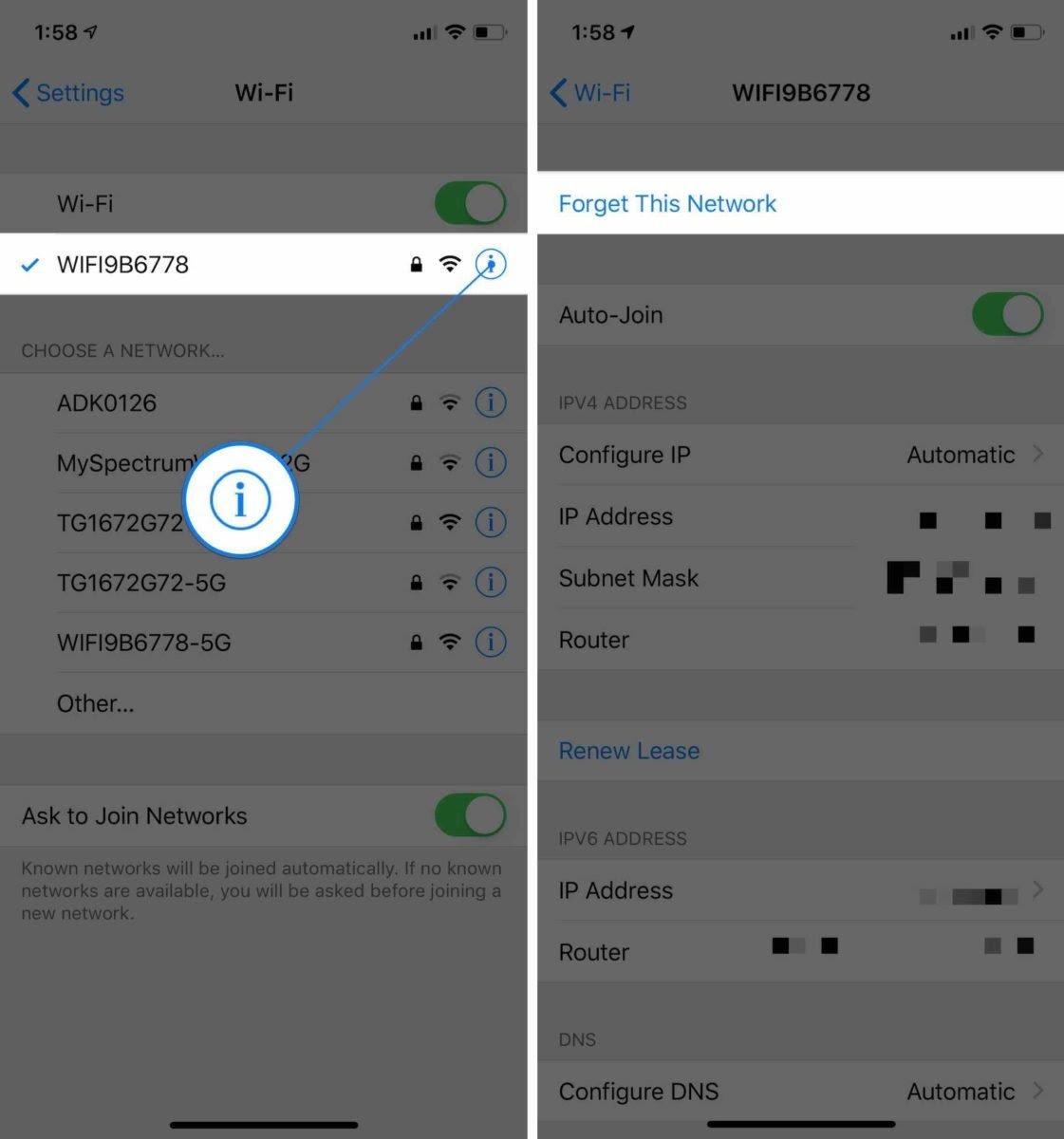
Next, go back to Settings -> Wi-Fi and tap on your Wi-Fi network to reconnect to it.
Restart Your Router
Sometimes the internet isn’t working because of an issue with your Wi-Fi router, not your iPhone. You may need to restart your router.
First, unplug your router from the wall. Wait a few seconds and plug it back in. Your router will boot back up and start to reconnect. Be prepared, this might take some time!
Troubleshooting Cellular Data Issues
Turn Cellular Off And Back On
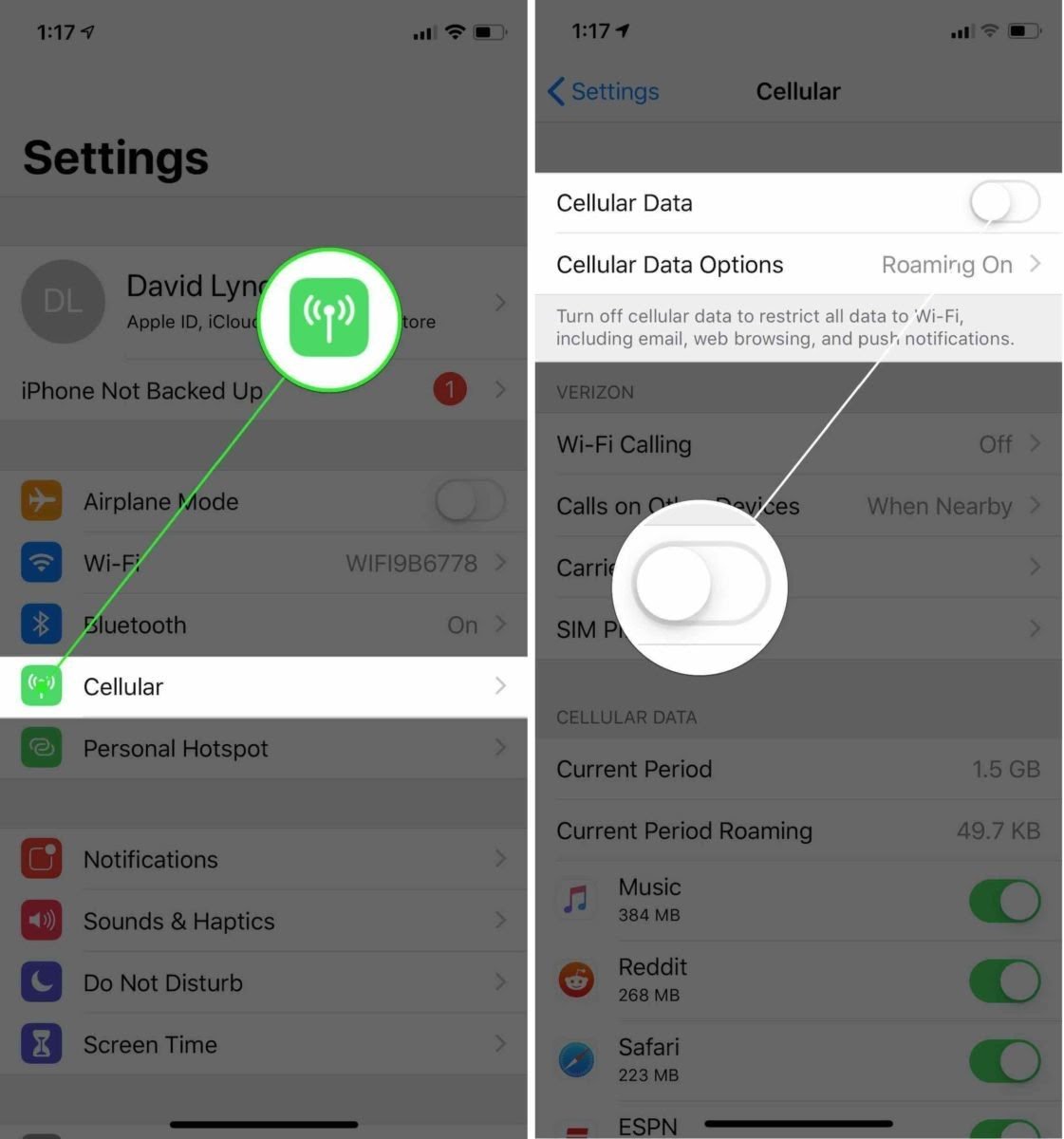
Turning Cellular Data off and back on can sometimes fix minor connectivity issues. Open Settings and tap Cellular. Then, turn off the switch next to Cellular Data. Wait a few seconds, then turn it on again.
Eject and Reinsert Your SIM Card
A SIM card is what connects your iPhone to your carrier’s wireless network. Sometimes ejecting the SIM card and reseating it can fix connectivity problems.
Your iPhone SIM card is located in a tray on the side of your iPhone. Check out our guide on ejecting SIM cards if you need help! After reinserting your SIM card, try connecting to the internet.
Final Steps
If your iPhone still won’t connect to the internet after following of the steps above, you may have to perform a deeper reset on your iPhone. Before you do, head to Settings -> General -> Software Update and make sure your iPhone is running the latest version of iOS. Tap Download and Install if a software update is available.
Apple regularly releases iOS updates to fix minor bugs and problems, one of which could be preventing your iPhone from connecting to the internet.

update to ios 14.4
Reset Network Settings
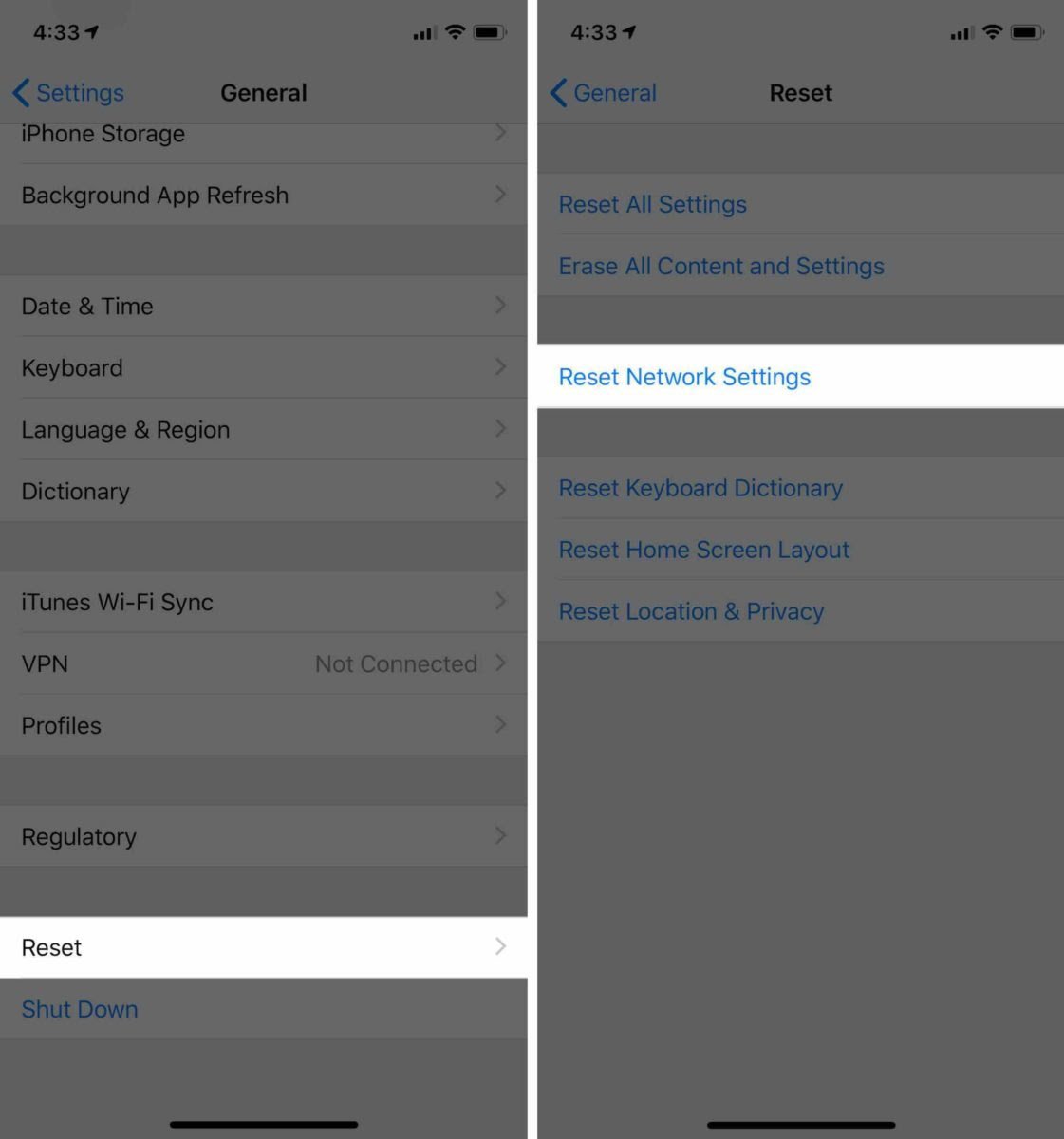
When you Reset Network Settings, all Wi-Fi, Bluetooth, Cellular, and VPN settings are restored to factory defaults. You’ll have to reconnect your Bluetooth devices and reenter your Wi-Fi passwords after completing this step.
Open Settings and tap General -> Reset -> Reset Network Settings. Then, tap Reset Network Settings when the confirmation pop-up appears. Your iPhone will shut down, perform the reset, then turn itself on again.
Repair And Support Options:
If none of software troubleshooting steps fixed the problem, it’s time to get in touch with a customer support representative at Apple, your wireless carrier, or your router manufacturer.