cfl.rr.com email not loading in Mail app after iOS and iPadOS update

Cannot Load my cfl.rr.com email account on the Mail App after this latest iOS and iPad update;


[Re-Titled by Moderator]

Original Title: Neither Apple nor Spectrum not taking responsibility for cfl.rr.com email not being picked up by ‘other account” in Mail app; very disturbing plus I hate the new interface

iPad Pro, iPadOS 26

Posted on Oct 13, 2025 10:09 AM

Reply
Question marked as Top-ranking reply

Posted on Oct 24, 2025 9:58 AM

The most common fix is to verify and potentially re-enter the correct IMAP/SMTP server settings. Since your domain is part of the RoadRunner family, the server details typically point to the mail.twc.com server.

Recommended Troubleshooting Steps

  1. Verify Your Internet Connection: First, ensure your device has a stable Wi-Fi or cellular data connection by successfully loading a website in a browser.
  2. Verify/Update Mail Settings:
    • Go to Settings > Mail > Accounts.
    • Select your cfl.rr.com account.
    • Check and update the Incoming Mail Server (IMAP) and Outgoing Mail Server (SMTP) settings to match the following. You may need to delete and re-add the account entirely if you cannot edit the server fields.
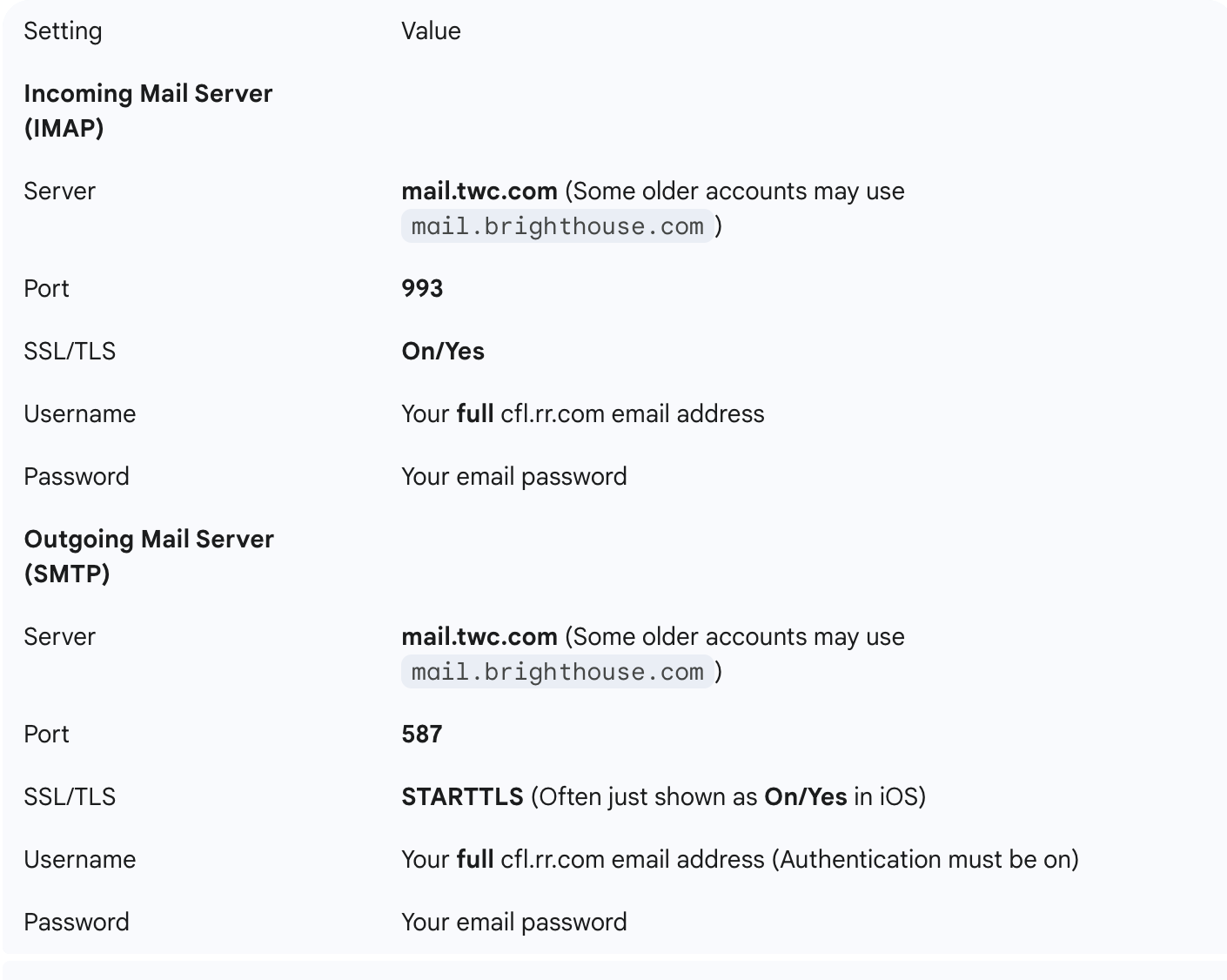

Remove and Re-add the Account: If updating the settings doesn't work, delete the account from the Mail settings and then add it again as a new account, making sure to enter the correct server details above. This forces a fresh configuration.

  • Settings > Mail > Accounts > Select your account > Delete Account.
  • Settings > Mail > Accounts > Add Account > Other > Add Mail Account.

Restart Your Device: After any change, a full restart can clear minor software glitches.

1 reply
Question marked as Top-ranking reply

Oct 24, 2025 9:58 AM in response to Delta123

The most common fix is to verify and potentially re-enter the correct IMAP/SMTP server settings. Since your domain is part of the RoadRunner family, the server details typically point to the mail.twc.com server.

Recommended Troubleshooting Steps

  1. Verify Your Internet Connection: First, ensure your device has a stable Wi-Fi or cellular data connection by successfully loading a website in a browser.
  2. Verify/Update Mail Settings:
    • Go to Settings > Mail > Accounts.
    • Select your cfl.rr.com account.
    • Check and update the Incoming Mail Server (IMAP) and Outgoing Mail Server (SMTP) settings to match the following. You may need to delete and re-add the account entirely if you cannot edit the server fields.


Remove and Re-add the Account: If updating the settings doesn't work, delete the account from the Mail settings and then add it again as a new account, making sure to enter the correct server details above. This forces a fresh configuration.

  • Settings > Mail > Accounts > Select your account > Delete Account.
  • Settings > Mail > Accounts > Add Account > Other > Add Mail Account.

Restart Your Device: After any change, a full restart can clear minor software glitches.

This thread has been closed by the system or the community team. You may vote for any posts you find helpful, or search the Community for additional answers.

cfl.rr.com email not loading in Mail app after iOS and iPadOS update

Welcome to Apple Support Community
A forum where Apple customers help each other with their products. Get started with your Apple Account.